| « Office 2010 Beta Activation - part 2 | Office 2010 beta MSDN availability » |
Office 2010 Beta activation
Uncategorized, Windows 2008, Exchange, Windows 7
I was soo happy with my new Office 2010 beta that I installed immediately yesterday. And of course had some set-backs. If you are looking for the conclusion for all of this it is at the bottom of the post.
Started out with the 64 bits version. That did not like the fact that there was a 32 bit version of office 2010 CTP beta and office 2007 32 bit on there. SO had to switch to 32 bit version installer.
The 32 bit installer told me to remove the CTP beta of office 2010 first. So I did (same for Project and Visio). After that (and a reboot) it asked me if I wanted to upgrade office. Great. I can not get rid of the old office 2007 somehow, so go ahead. It did finish without problems, but it seems to have left the references to ofice 2007 intact. Hmmm. Ah well, as long as it works first right?
So I started up Outlook and Word. Seemed to work fine. But it asked me to register/activate. Well no problem, but I haven't written the key anywhere yet. Lucky there was a button saying "Change key". However that gave me an error. Actually it looked like the activation just crashed.
I do not have a KMS setup on the network (too small), so there must be a way to manually activate. Yes there is:
open an elevated command prompt and
slmgr -ipk xyxyx-xyxyx-xyxyx-xyxyx-xyxyx
Should be as easy as that.
Next error!
error 0xC004F050 The Software Licensing Service reported that the product key is invalid
Tried this several times.
How to activate this Office 2010 beta?
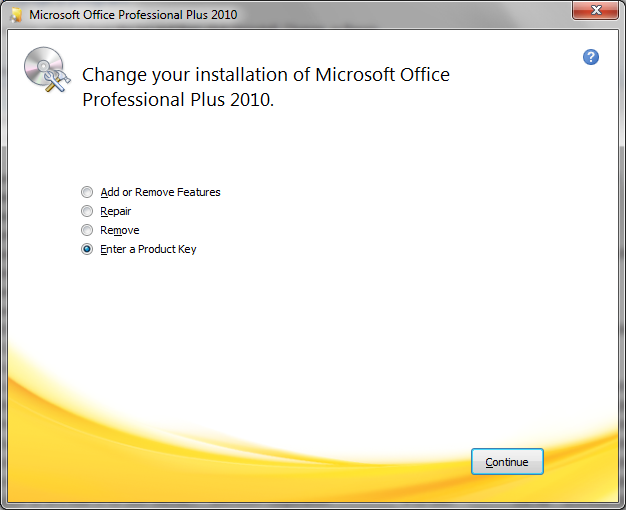
Next try. Perhaps I have to Repair it or something like that. So go to the control panel and find the programs and go to the uninstall programs part. Find Office 2010 and click the Change button.
What????? Check this screen ![]()

It has 4 options (add/remove features, repair, remove, Enter a product key). This must be what we want!
So I went for the last option to enter a product key and enter it there. Next next and a long wait. Argh, it asks me to reboot. No time! I just open Word.
Great an activation wizard! But this one is different from the old one. This one gives me possibility to activate over the internet now. Yes! This one does not complain. Have to restart Word though. After restarting Word... no more popups and problems. It works!
So conclusion:
- remove early CTP beta versions from your machine before installing this beta version released yesterday 16 nov 2009).
- Make sure to use the right number of bits for the installer (32 or 64)
- Install office
- Try to activate from the wizard that pops up
- If that fails go to control panel - programs - uninstall programs and find office 2010 and click the Change button
- Enter the product key and go through the wizard and reboot when asked
- Open a program (I used Word) and find anotehr activation wizard and choose to activate over the internet now
- When success it will ask for a restart of the office program, so close the program
- start the office program again and it should be activated
Enjoy!
Bob Cornelissen


2. Stop the Office Software Protection service.
3. Open a Command Prompt with elevated privileges.
4. Run the OSPPRUN.exe with the following command:
%SystemDrive%:\Windows\System32\OSPPRUN.exe
Where %SystemDrive% is normally C: or other drive letter that Windows is installed on.
5. A new prompt will come out. Enter the following commands which precede with > one by one, each follows by Enter:
> Initialize
> Open
> GetInstalledSkuIds
Above command will return the following result, where the application ID number 0 represents AppID for Office 2010:
0. 128a057a-7e95-4063-b296-c54c5f3d3f3a
1. 26adec89-edf3-4adc-a3fc-c865f1a9f71f
OK.
> GetInstalledAppIds 128a057a-7e95-4063-b296-c54c5f3d3f3a
Above command will return result similar to below:
0. 59a52881-a989-479d-af46-f275c6370663
OK.
> GetLicensingStatus 59a52881-a989-479d-af46-f275c6370663 128a057a-7e95-4063-b296-c54c5f3d3f3a
Above command will return the following output, where dwGraceTime is a DWORD value that holds the grace period before the software will stop working and require activation:
SkuId = 128a057a-7e95-4063-b296-c54c5f3d3f3a
eStatus = SL_LICENSING_STATUS_IN_GRACE_PERIOD
dwGraceTime = 1D 23:37
dwTotalGraceDays = 30 days
hrReason = 4004F00C
qwExpiration = 2010/10/31
OK.
6. In the same prompt, run the following commands (which basically set AppID and SkuID for Office 2010 to enable free 30 days usage before activation), each follows by Enter, to rearm Microsoft Office 2010 to reset, prolong and extend activation grace period for additional 30 days:
> Rearm 59a52881-a989-479d-af46-f275c6370663 128a057a-7e95-4063-b296-c54c5f3d3f3a 1
OK.
Note: Mostly the IDs are the same for similar Office 2010 installation. If your APP ID and/or SKU ID is different, please change accordingly.
> Close
> Initialize
> Open
Note: “Close” command is import to stop the Office Software Protection service (which can also be stopped via Service.msc interface) after rearming and before reinitialize of license data (The activation countdown timer or license requires a service reinitialization or restart to update), or else “Unlicensed” license status with timer at 0 error may occur.
7. To verify that the Office 2010 rearm is successful, and to check how many days left in activation grace period before activation is required, use the following command, follows by Enter (replace IDs if different):
> GetLicensingStatus 59a52881-a989-479d-af46-f275c6370663 128a057a-7e95-4063-b296-c54c5f3d3f3a
SkuId = 128a057a-7e95-4063-b296-c54c5f3d3f3a
eStatus = SL_LICENSING_STATUS_IN_GRACE_PERIOD
dwGraceTime = 29D 23:37
dwTotalGraceDays = 30 days
hrReason = 4004F00C
qwExpiration = 2010/10/31
dwGraceTime will show the remaining time available to use Office 2010 for free without activation.
8. Quit the OSPPRUN prompt with following command, follows by Enter:
> Quit
Tip 1: To check how many rearms that is remaining, use the following command:
> GetApplicationInformation 59a52881-a989-479d-af46-f275c6370663 RemainingRearmCount
(DWORD, []) 59a52881-a989-479d-af46-f275c6370663 = 4
OK.
After one rearm of Office 2010, 4 rearms is still possible, to extend the free (evaluation or trial) free usage of Office 2010 to 180 days (6 months or half a year), taking into account the initial 30 days activation free period before first ream is performed.
Tip 2: To check and show how many rearms of Office 2010 have been performed, use the following command:
> GetApplicationInformation 59a52881-a989-479d-af46-f275c6370663 RearmCount
(DWORD, []) 59a52881-a989-479d-af46-f275c6370663 = 1
OK.